The initial deployment is the very first deployment delivered to a device. Since initial deployments have no predecessors, their workflow differs slightly from editing configurations.
To create a device’s initial deployment, navigate to the Devices page.
Only devices that been provisioned, but never deployed to, are candidates for an initial deployment.You can identify these devices by their Release column. If their release column displays a placeholder text of Set instead of a release version (i.e. v1.0.0, v1.1.0, etc.), then the device is a candidate for an initial deployment.Continue by clicking into the device you want to initialize. Since the device has no deployments deployed, a dialog will appear listing the releases to choose from to create the initial deployment.
If no releases are shown, you will need to create a release before continuing.
At this point, you have two options: deploy a staged deployment or create a new deployment.
If you’ve staged a deployment on the chosen release for the device, the release will have the Staged badge next to it.Select a release with a Staged badge and hit Next.
The deployment staged on this release will appear in the dialog. Select the deployment and hit Deploy.
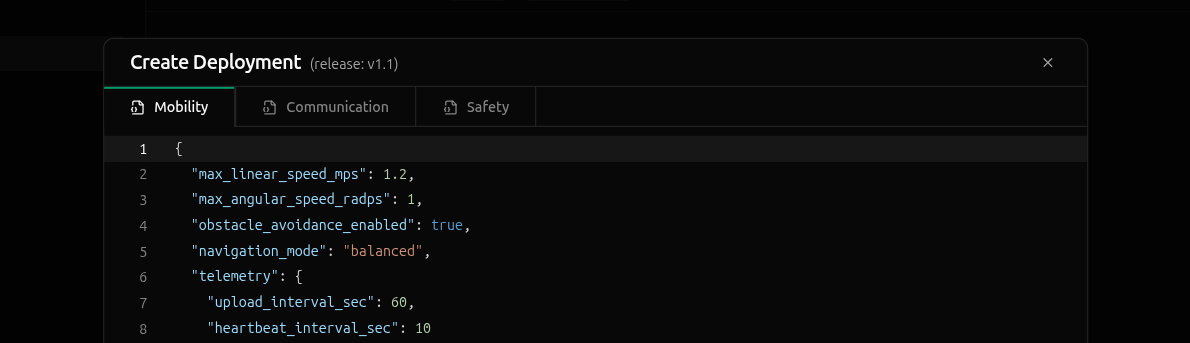
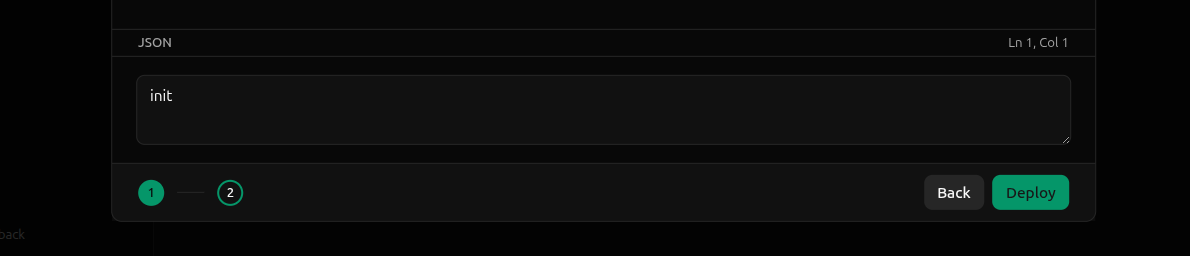
If the release you selected has no staged deployments, you’ll immediately be presented with a dialog to create a new deployment.
The dialog includes a tab for each config schema defined in the release, each pre-populated with the schema’s default values.Make any desired edits to the config instances, enter a description at the bottom of the dialog, and hit Deploy.