Workspaces are the highest level organizational unit in Miru. They contain every sub-resource, such as devices, releases, deployments, config instances, etc.Every user can only belong to a single workspace. As such, you cannot login to multiple workspaces with the same email address.
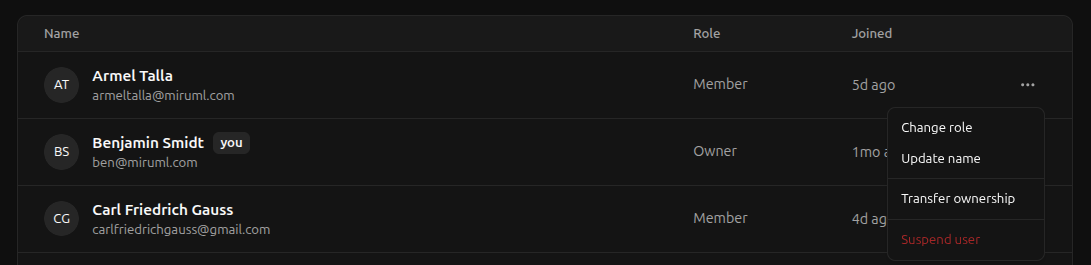
To be able to transfer ownership of your workspace to another member, you must be the current owner of the workspace.To begin, navigate to the members page. Click the ellipses (…) of the member you want to transfer ownership to and hit Transfer ownership.
Transferring workspace ownership is a sensitive operation and cannot be undone. Please proceed with caution.
Leaving a workspace removes all access to your workspace and sets your status to :
You are immediately logged out
You cannot login to this workspace or access any resources (signing in with the same email address creates a new workspace with a new account)
Leaving a workspace is reversible if you are not the only . An admin can invite you back to the workspace at any time.However, if you are the only active member of a workspace, leaving the workspace will delete the workspace and all associated resources.To leave your workspace, navigate to the profile page and click Leave workspace.
If the leave workspace button is disabled, you are not the only member of the workspace and first need to transfer ownership of the workspace to another member.