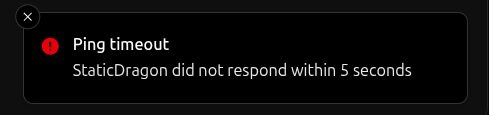
Pinging a device sends a real-time request to verify whether it is online. Ping requests wait up to 5 seconds for a response from the device before timing out. devices should return a success message similar to the one below.
On the other hand, devices should return a timeout message similar to the one below.
Reactivating a device is the process of reinstalling the Miru Agent on a device that was previously activated. Reactivating a device:
Invalidates the device’s current authentication session
Creates a new authentication session for the device
Resets the Miru Agent to a clean state
Recreates the device’s current deployments
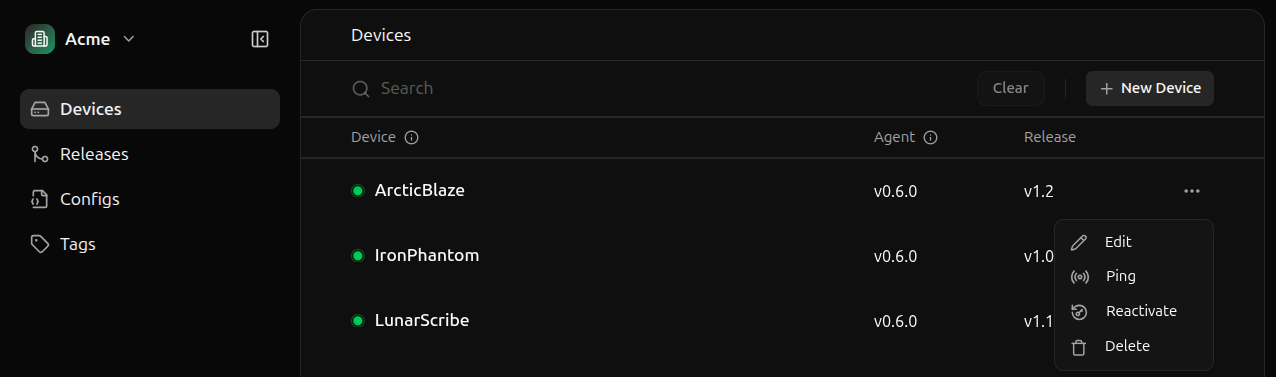
Reactivating a device resets the Miru Agent to a clean state while preserving the device’s full deployment history.DashboardTo reactivate a device, click the ellipsis (…) next to the device you want to reactivate, then select Reactivate.
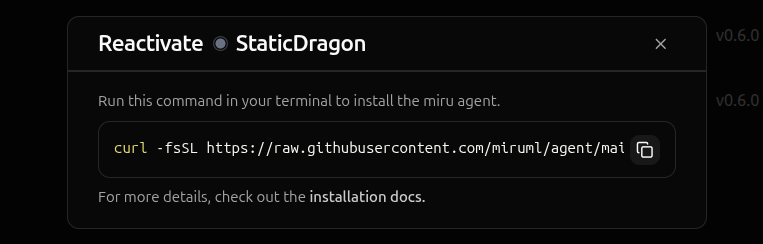
A dialog will appear with a pre-authenticated reactivation command. Copy this command and paste it into a terminal of the device you want to reactivate.
Outside the reactivation capability, this installation command is identical to the activation command used to provision a device. For more information on the installation command, visit the dashboard device provisioning documentation.Server-Side APITo reactivate a device programmatically, use the API key provisioning workflow with the --allow-reactivation flag enabled.
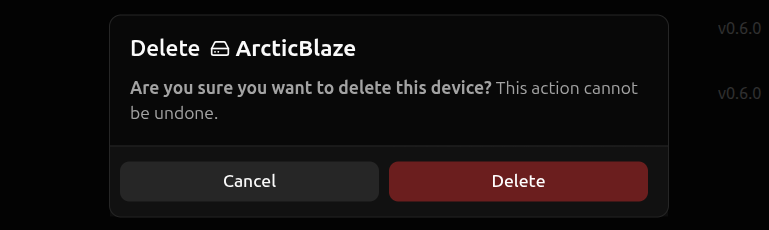
Deleting a device immediately invalidates its authentication session and removes all deployment and configuration history. This action is irreversible. Please proceed with caution.DashboardTo delete a device, click the ellipses (…) on the device you want to delete and hit Delete.
A confirmation dialog will appear—click Delete to confirm.