

systemd commands and other standard Linux tools.
The current CLI is only for managing Miru resources from your development machine’s terminal. Please do not attempt to use the miru command to manage the agent.
Version
To check the version of the agent, use thedpkg-query command with the miru-agent debian package.
Logs
The Miru Agent logs are accessible viajournalctl, the standard tool for viewing systemd service logs.
View all
By default,journalctl truncates each line’s output to the size of the terminal window. We recommend using the --no-pager flag to view the full log output for each line.
Tail in real-time
Tail the logs and watch new entries as they appear.Recent logs
View only the most recent log entries (e.g., the last 100 lines).Filter by time
View logs from a specific time period.Filter by priority
View only logs of a specific priority level (e.g., errors).Systemd
The Miru Agent runs as asystemd service named miru, allowing you to manage the service using standard systemctl commands.
You can find the agent’s systemd service files on your file system at the following paths:
/lib/systemd/system/miru.service/lib/systemd/system/miru.socket
Status
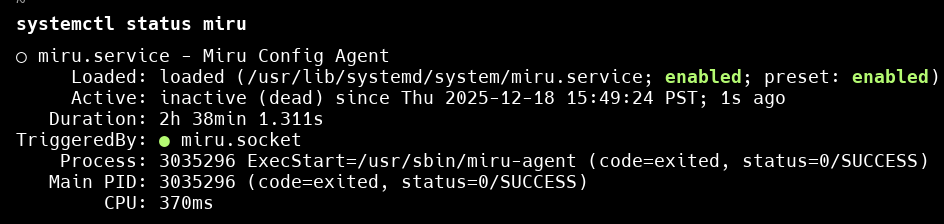
To check the status of the agent, use thestatus command.
- Active
- Inactive
The agent is running as expected.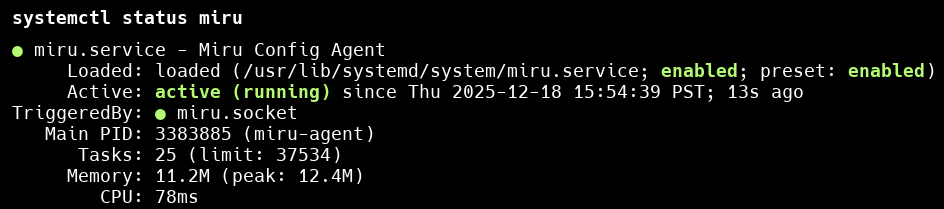
Restart
Restarting the agent stops and starts the agent, giving it a fresh start. If you’re experiencing unexpected behavior, restarting the agent is a good place to begin.If the agent is not running, restarting it will start it.
Stop
stop stops the agent while leaving its state intact. Stopping the agent does not disable the agent—it will still automatically start on next system boot.
Note that stopping the agent will prevent any new deployments from reaching the device until the agent is started again.
If the agent is not running, stopping it does nothing.
Start
start starts the agent if it has been stopped.
If the agent is already running, starting it does nothing.